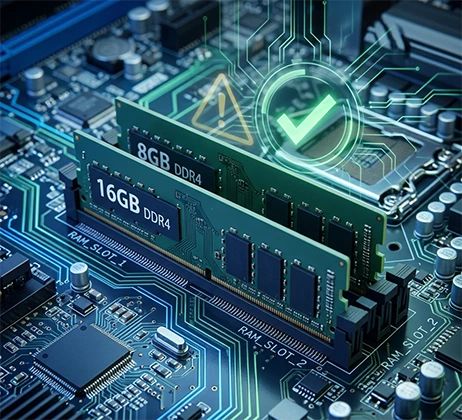
To determine whether your computer needs more memory, consider both the symptoms you notice during everyday use and the data reported by system tools. Looking at only one of these factors can easily lead to a wrong conclusion. If you often experience slowdowns when multitasking, apps crashing, or other problems during normal use, and system checks show that memory remains under heavy load and virtual memory is used frequently, adding RAM can usually improve multitasking performance and the overall user experience.
Common Signs of Insufficient RAM
To decide whether your computer needs a RAM upgrade, start by checking whether you experience any of the following problems during everyday use.
The Computer Slows Down When You Open Multiple Browser Tabs
Modern browsers use memory to handle webpage content, extensions, videos, and background tasks. When you open many tabs at the same time, the browser can use a significant amount of memory. Common signs include:
- Noticeable delays when switching between tabs.
- Webpages need to reload before they work properly again.
- The browser freezes briefly.
- The browser responds much more slowly when other programs are running at the same time.
If your computer runs smoothly again after you close some tabs, your current workload may be approaching the limit of your available memory.

The Computer Lags When Running Multiple Programs
If you often use Chrome, Microsoft Word, Excel, Zoom, Photoshop, and other software at the same time, your computer needs to allocate memory to multiple applications. When there is not enough RAM, the system may need to adjust memory allocation frequently or even move some data to the drive. This makes switching between applications slower and can also affect overall responsiveness. For users who multitask frequently, adding RAM is usually a higher priority than simply choosing memory with a higher frequency.
Programs Take Longer to Launch and Files Load More Slowly
When memory resources are running low, the system may need to read some data from the storage device again. This can increase the time it takes to launch large applications, slow down file opening, and cause delays when switching between applications. However, slow program startup can also be caused by SSD performance, CPU processing power, the software itself, or system startup items. You should therefore consider other indicators before deciding.
Games Stutter and Frame Times Become Unstable
Modern games usually use RAM to store maps, game assets, character information, and other runtime data. If the system does not have enough memory, games may take longer to load, stutter when switching scenes, or pause briefly during gameplay. These problems may become more noticeable when Discord, a browser, streaming tools, or screen-recording software are running at the same time.
However, game stuttering is not necessarily caused by RAM. GPU performance, VRAM capacity, CPU load, cooling, and network conditions can also affect the gaming experience.
Video Editing and Professional Design Software Runs Poorly
Software such as Photoshop, Premiere Pro, DaVinci Resolve, and Blender can require a large amount of memory, especially when working with large files, complex layers, 4K video, and 3D scenes. If you often experience editing delays, choppy previews, slow loading of large projects, or insufficient-memory warnings, it is worth checking whether your RAM meets the software’s actual requirements.
Applications Display Out-of-Memory Errors
If your computer often displays errors such as Out of Memory, Not Enough Memory, or Insufficient Memory, an application may not be able to access the memory resources it needs. This may be due to insufficient physical RAM, but it can also be related to virtual memory settings, a memory leak in an application, or limitations in the software itself. If these errors occur frequently and are accompanied by system slowdowns, you should check memory usage more closely.
Use System Tools to Check for Insufficient Memory
Even if you experience the possible signs of insufficient memory described above, you cannot be completely sure that RAM is the cause. You also need to use system tools to check actual memory usage.
For Windows
Press `Ctrl+Shift+Esc` to open Task Manager. Go to the Performance tab and select Memory on the left. Pay close attention to the following key indicators:
- Memory usage: If memory usage stays above 80%–90% during everyday use and remains high even after you close unnecessary programs, your memory capacity may be insufficient. Consider an upgrade if usage exceeds 80% on a device with less than 8GB of RAM, or 90% on a device with 16GB of RAM or more.
- Committed memory: If the Committed value remains higher than the total physical memory capacity (for example, a computer with 16GB of RAM shows 22GB committed), the system is relying heavily on virtual memory.
- Available memory: If available memory stays below 1–1.5GB during everyday use, the system will compress data and access the drive frequently. This can make slowdowns much worse.
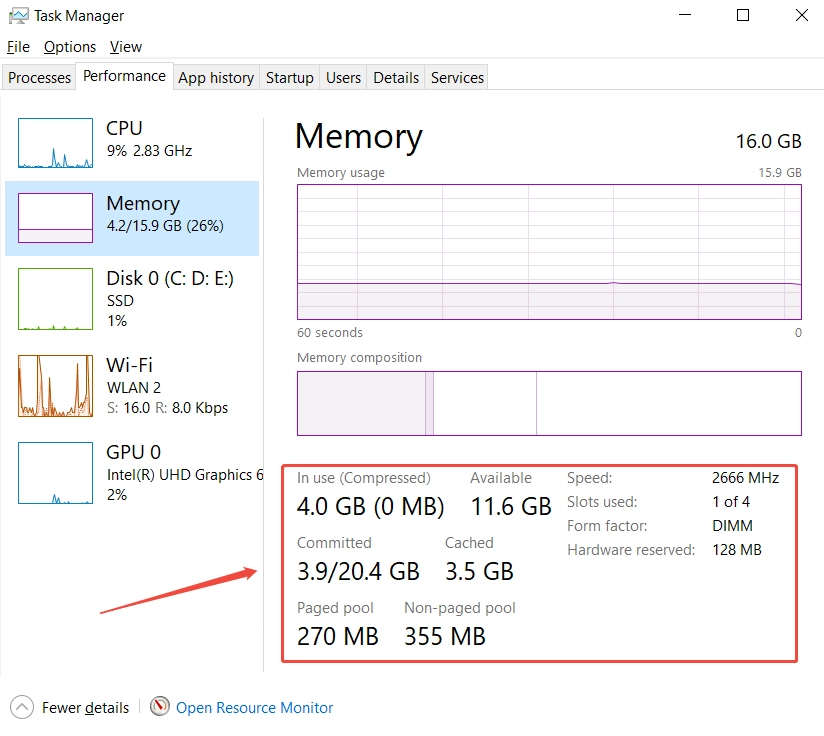
Additional check: Switch to the Disk page. If disk usage stays above 90% for a long time while memory usage is high, the performance drop is very likely caused by excessive use of virtual memory.
For Mac
macOS users can use Activity Monitor to check memory status. Follow these steps:
- Open Finder
- Go to Applications
- Open Utilities
- Launch Activity Monitor
- Click Memory
- Check Memory Pressure
The key indicator is the Memory Pressure graph:
- Green: Memory is sufficient. No upgrade is needed.
- Yellow: Memory is under some pressure. You can try optimizing background apps.
- Red: Memory is severely insufficient. The system is frequently compressing memory and swapping data to disk, so a RAM upgrade can make a significant difference.

For Linux
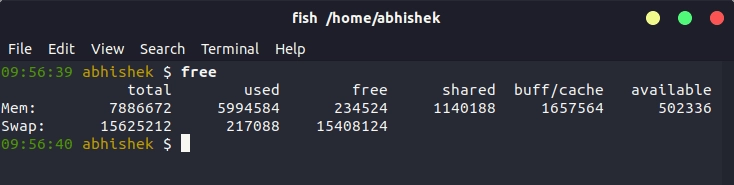
Linux users can check memory status with a terminal command. Open Terminal and enter:
free -h
This command displays total memory, used memory, free memory, and Swap usage. Available is more useful than Free alone because Linux uses some unused RAM for caching.
Recommended Decision Process
Use the symptoms you notice as a signal to start checking. If you frequently experience the slowdowns, crashes, or unusual drive activity described above during everyday use, then open the system tools to check memory. This helps you avoid unnecessary hardware troubleshooting. When checking, recreate the demanding situations you encounter most often. For example, open all the software you use for daily work or run a game you regularly play. Observe the system under a real workload for 10 to 15 minutes to make sure the data reflects your actual needs.
If you notice clear performance problems and the data confirms that memory remains under heavy load and virtual memory is used frequently, RAM is very likely to be a key performance bottleneck. In this case, consider upgrading. If you do not notice obvious slowdowns but the data consistently shows that memory is fully used during demanding tasks, this is a potential bottleneck. You can upgrade in advance if you plan to run more demanding workloads in the future. If you expect to keep using your computer as you do now, you can wait. If you experience slowdowns but the data shows low memory usage, there is no need to consider a RAM upgrade. Instead, investigate other hardware or software issues, such as the CPU, storage drive, or cooling system.
How Much RAM Do Different Tasks Require?
| Use Case | Recommended RAM | Typical Workloads |
|---|---|---|
| Basic office work and web browsing | 8–16GB | Document editing, email, online video |
| Everyday work and study | 16GB | Multiple browser tabs, Office, video meetings |
| Multitasking | 16–32GB | Running multiple applications, programming, and development |
| PC gaming | 16–32GB | Modern games, voice chat, and background applications |
| Photo and video editing | 32–64GB | Photoshop, video editing, and complex projects |
| 3D modeling and professional design | 32–64GB or more | Blender, CAD, and large scenes |
| Virtual machines and large-scale data processing | 64GB or more | Multiple virtual machines, large datasets, and professional workflows |
- 8GB of RAM is enough for some basic office tasks and light use, but there may be very little memory left when several modern applications are running. If you often need to keep many webpages, office programs, and video-conferencing tools open at the same time, consider upgrading to 16GB.
- 16GB of RAM is a well-balanced configuration for everyday computers. It can meet the needs of many office tasks, study, web browsing, and general gaming. For most users who do not need to run demanding professional software, 16GB is usually a reasonable starting point.
- 32GB of RAM is better suited to heavy multitasking, modern games, software development, and content creation. If you often run large applications at the same time or need to edit high-resolution video, 32GB provides more room to work.
- 64GB of RAM or more is mainly intended for professional users, such as those working on large video productions, complex 3D projects, virtualization, and data analysis. For ordinary web browsing and document editing, upgrading to 64GB usually does not provide a noticeable benefit that justifies the cost.
When a RAM Upgrade Will Not Help Much
- Insufficient CPU performance. If CPU usage stays close to 100% while plenty of RAM is still available, the processor may be the problem. For example, large data calculations, video encoding, and complex program execution can all be limited by CPU performance. In this case, adding RAM will not directly increase the CPU’s computing power.
- Poor SSD or HDD performance. If your computer still uses a traditional hard disk drive, slow startup, slow application launches, and long file-loading times may be related to drive performance. In this situation, upgrading from an HDD to an SSD may be more effective than adding RAM.
- Insufficient GPU performance or VRAM. Games and graphic design software use both system RAM and GPU memory (VRAM). If there is not enough VRAM, you may experience slow texture loading, stuttering in complex scenes, and lower graphics performance. Adding system RAM does not directly increase the VRAM of a dedicated graphics card.
- Poor cooling. When the CPU or GPU gets too hot, the system may automatically lower its operating frequency. This is known as Thermal Throttling. If your computer runs normally just after startup but gradually slows down after extended use, check the cooling system, fans, and device temperatures.
- Software issues and memory leaks. Some applications may have a Memory Leak, which causes their memory usage to keep increasing. If a program uses an unusually large amount of RAM, check its version, background processes, and related updates first instead of immediately buying more memory.