
Installing the ON900A SSD is not difficult and can be completed in just a few simple steps. We recommend that you prepare a spare computer. Open this webpage on the spare computer. First, read through all the steps below, and then follow the instructions step by step. You will easily complete the upgrade of your computer!
1
Check If Your Computer Is Compatible With ON900A
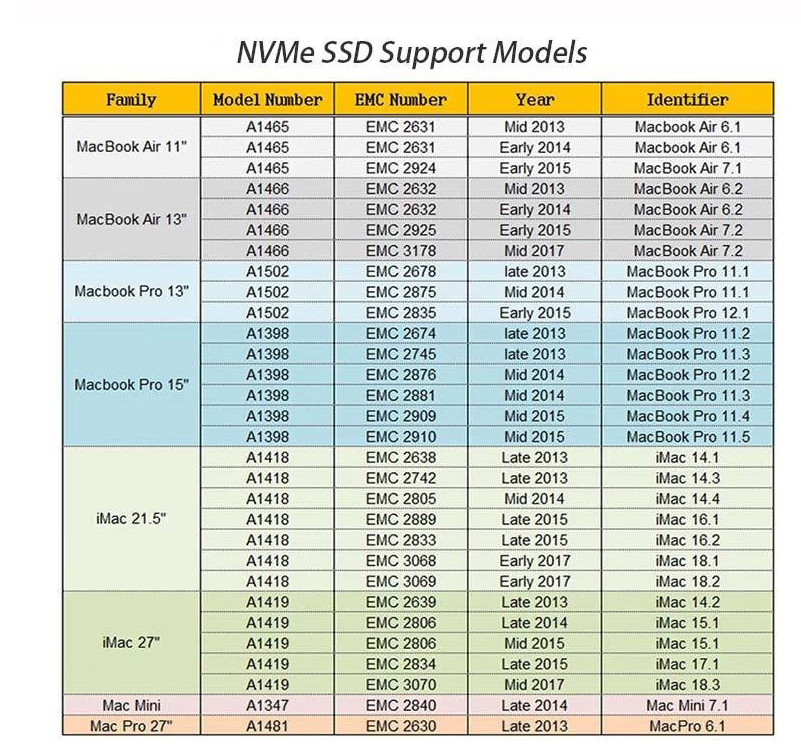
The ON900A SSD is only recognized and used by specific Apple laptop models. There are two ways to check if your computer is compatible. Please watch the video below and use our compatibility table to check your computer’s compatibility. Note that you must ensure your computer is compatible before installing the ON900A.
2
Confirm That Your Computer's Operating System Version Is Macos 10.13 Or Later
The ON900A only works on macOS 10.13 or later. If your system version is lower, please upgrade your system before installing the ON900A; otherwise, your computer will not be able to recognize the SSD. The video below will explain in detail how to check your system version and how to upgrade your system.
3
Physical Installation Of ON900A SSD
Note that before physically installing the SSD, please confirm again that your computer’s operating system is macOS 10.13 or later. Then watch the video below and follow the video demonstration to install the ON900A SSD.
4
Install macOS System
Because the ON900A does not come pre-installed with a Mac operating system, you will need to install the operating system on the ON900A after completing the physical installation for your computer to function properly. Two system installation methods are available for you to choose from:
It is recommended to first try installing the system via the network (Step 4A), If that fails, then try installing the system via a boot disk (Step 4B)
4A
Install The System Via Network
The following video will show you how to install the operating system over the internet.
NOTE: If you are unable to successfully install the system over the network due to internet connection failure or other reasons, please try step 4B below. But if you have successfully installed the system over the network, please just ignore step 4B and start to use your computer normally.
4B
Install The System Using A Boot Disk
Note that if you have already successfully installed the system using step 4A, please skip this step. If you are unable to install the system over the network, you will need to install it by creating a bootable disk, which involves the following steps:
- Reinstall your old drive into your computer.
- Download the operating system via the link provided below.
- Create a bootable USB drive.
- Install the operating system using a boot disk.
Now, please prepare a USB flash drive with a capacity of 16GB or more, then carefully watch the video below and follow the steps in the video. If you are still unable to successfully install the system, please contact us through the contact information below, and we will assist you in resolving the issue.
System Download:
Command:
Click Here to Contact Us