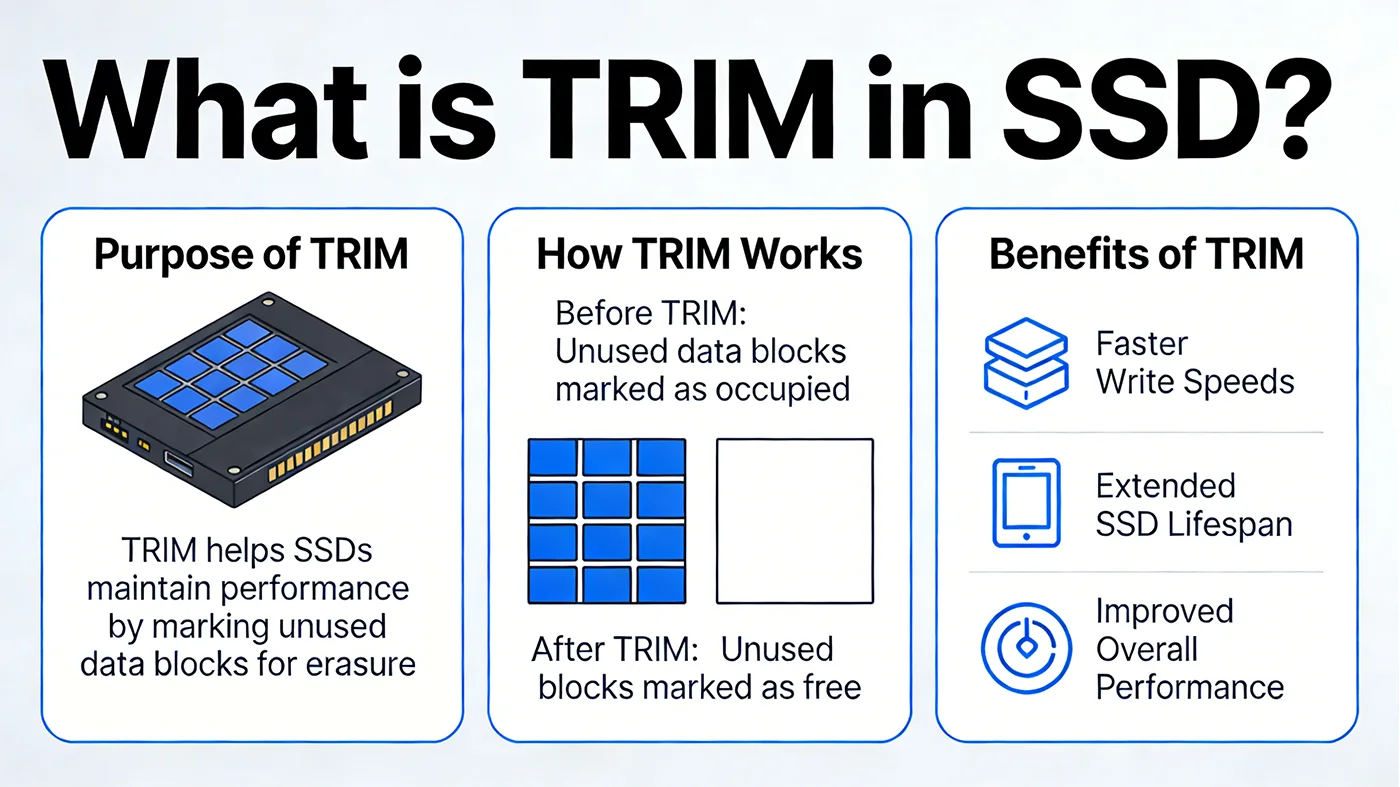
TRIM is a command that acts as a communication bridge between your computer’s operating system and its SSD. It tells your SSD’s controller which parts of the drive are no longer storing useful data—like files you’ve deleted or emptied from the recycle bin—and can be safely erased. This might sound simple, but it’s critical for keeping your SSD fast and durable. For newer NVMe SSDs, this functionality is technically called “Deallocate” or “Unmap,” but it works the same way as the original TRIM command used for older SSD SATA. The name might differ, but the goal is identical: to help your SSD work more efficiently.
Why TRIM Is Necessary for SSDs
To understand why TRIM is so important, we first need to know how SSDs differ from traditional hard disk drives (HDDs). The two storage types handle data deletion and overwriting in completely different ways, and this mismatch is exactly why TRIM was created.
SSDs vs. HDDs: The Key Difference
HDDs use spinning magnetic platters to store data. When you delete a file on an HDD, the OS just removes the “address” of that file. The actual data stays on the platter until it’s overwritten by new data. You don’t need any special commands for this. The HDD can overwrite old data directly. SSDs are different. They use Mémoire flash NAND and cannot overwrite data directly. Before writing new data, an SSD must first erase a large block of memory (called a “block”) and blocks are much bigger than the small chunks of data (called “pages”) that SSDs write. This means if your SSD doesn’t know which data is useless, it has to do extra work to free up space, which slows it down and wears it out faster.
The Problem Without TRIM
If TRIM is disabled, your SSD’s controller has no way to tell the difference between valid data (files you still use) and invalid data (files you’ve deleted). When the SSD needs to free up space for new data, it runs a process called Garbage Collection (GC)—but without TRIM, GC has to copy all the valid data from a block to a new location before erasing the old block. This extra copying is called Write Amplification (WA), and it’s a big problem. Write Amplification means the SSD writes more data physically than the OS asks for. For example, if WA is 3, your SSD is writing three times more data than you actually need it to. Over time, this slows down write speeds and accelerates wear on the NAND flash, shortening your SSD’s lifespan. TRIM fixes this by giving the SSD the information it needs to skip the extra work.

How TRIM Works
TRIM doesn’t erase data immediately—it just lets your SSD know which data is no longer needed, so the SSD can clean up efficiently when it’s idle. Here’s a step-by-step breakdown of how it works:
- First, you delete a file or empty the recycle bin. Your OS marks the file’s location (called a Logical Block Address, or LBA) as “logically deleted” in its file system.
- Next, the OS sends a TRIM command to the SSD, listing all the LBAs that now have invalid data. The SSD’s controller updates its internal map to flag those LBAs as useless—no physical erasure happens yet.
- When your computer is idle, the SSD’s Garbage Collection process kicks in. Instead of copying valid data first, it erases entire blocks that only contain invalid data—thanks to the TRIM command. These erased blocks become free space, so the SSD can write new data directly without any extra steps. This keeps the SSD fast and reduces wear.
A key point to remember: TRIM is asynchronous. It doesn’t slow down your computer because the actual erasing happens in the background when you’re not using the drive. You’ll never notice it working—but you’ll notice if it’s not.
TRIM vs. Garbage Collection vs. Write Amplification
These three terms are closely linked, and understanding how they work together will help you grasp why TRIM is so important. Here’s a simple breakdown to keep them straight:
| Term | What It Does | Role in SSD Health |
|---|---|---|
| TRIM | A command from the OS to the SSD, identifying invalid data locations | Gives Garbage Collection the “intelligence” to clean up efficiently |
| Garbage Collection (GC) | The SSD’s internal process to erase unused blocks | Uses TRIM data to erase blocks with no valid data |
| Write Amplification (WA) | The ratio of physical writes to logical writes (what the OS requests) | TRIM keeps WA low (1.0–1.5 is ideal), preserving speed and lifespan |
Without TRIM, WA can spike to 2–5 or higher, making your SSD slow and short-lived. With TRIM, WA stays near 1.0, which is the sweet spot for SSD performance and durability.
What You Need for TRIM to Work
TRIM only works if all three parts of your storage system support it. You don’t need to buy anything extra, but it’s good to verify these components are compatible:
| Component | Minimum Requirements |
|---|---|
| SSD | 1. SATA SSDs: Must support the ATA8-ACS2 firmware standard (all modern SATA SSDs do). 2. Les disques SSD NVMe : Must support “Deallocate” or “Unmap” (all modern NVMe drives qualify). |
| Système d'exploitation | Windows 7 or later, Linux kernel 2.6.28 or later, macOS 10.6.8 or later (for SATA) / 10.13 or later (for NVMe). |
| Driver/Interface | 1. SATA SSDs: Must be in AHCI mode (IDE mode disables TRIM). 2. Les disques SSD NVMe : Use the native NVMe drivers included with modern OSes. |
If you’re using RAID (a setup that combines multiple drives for speed or redundancy), TRIM support is limited. On Linux, Device Mapper RAID supports TRIM for RAID 0, 1, and 10 (but not parity RAID like 5 or 6). On Windows, most hardware RAID controllers do not support TRIM—only Microsoft’s Storage Spaces Direct (for NVMe drives in Windows Server 2019 or later) works with TRIM.
Automatic vs. Manual TRIM
TRIM works in two modes, and both are designed to keep your SSD healthy. You won’t need to do much, but it’s good to know the difference:
Automatic TRIM is the default setting on all modern operating systems. When you delete a file, the OS immediately sends a TRIM command to the SSD. It’s hands-off and perfect for everyday use—you don’t have to do anything to make it work.
Manual TRIM is used when automatic TRIM is disabled (rare) or if you notice your SSD’s performance slowing down. You can trigger it manually or set up a scheduled task (like a weekly cleanup) during times when your computer is idle. It’s a quick way to “clean up” invalid data and restore performance.
How to Check and Enable TRIM
Modern systems enable TRIM by default for compatible SSDs, but it’s worth verifying after a system reinstall, hardware upgrade, or if you’re experiencing slowdowns. Here’s how to check and enable TRIM on the three most common operating systems:
Windows 10/11
- To check TRIM status: Open Terminal (as an administrator) and type
fsutil behavior query DisableDeleteNotify. If it returns “0,” TRIM is enabled (good). If it returns “1,” TRIM is disabled. - To enable TRIM: Type
fsutil behavior set DisableDeleteNotify 0in Terminal (as admin) and restart your computer. - To run manual TRIM: Go to Settings → System → Storage → Advanced storage settings → Optimize drives. Select your SSD and click “Optimize”—this runs both TRIM and Garbage Collection.
Linux
- To check TRIM support: Open Terminal and type
lsblk --discard. If you see non-zero values for “DISC-MAX” and “DISC-GRAN,” your SSD supports TRIM. - To enable automatic TRIM: Most Linux distributions use
fstrim.timer, which runs weekly. Check if it’s active by typingsystemctl status fstrim.timer. - To run manual TRIM: Type
sudo fstrim /(replace “/” with your SSD’s mount point if it’s not the main drive).
macOS
- To check TRIM status: Open Terminal and type
system_profiler SPSerialATADataType | grep "TRIM Support"(for SATA SSDs) orsystem_profiler SPStorageDataType | grep "TRIM"(for NVMe SSDs). - To enable TRIM (for non-Apple SSDs): Type
sudo trimforce enablein Terminal (you may need to temporarily disable System Integrity Protection, or SIP, for this to work). Apple SSDs have TRIM enabled by default.
Important Limitations to Keep in Mind
TRIM is powerful, but it has a few limitations you should be aware of to avoid surprises:
- Data is irrecoverable after TRIM. Unlike HDDs, where deleted data can sometimes be recovered with software, TRIM tells the SSD to erase invalid data permanently. Once TRIM runs, that data is gone for good—so be careful when deleting files!
- Formatting matters. A quick format sends TRIM commands to the SSD, which is good. A full format overwrites all data, which temporarily disables TRIM’s benefits (but it will work again once you start deleting files).
- Very old SSDs (pre-2010) may not support TRIM. If you have an older SATA SSD, check the manufacturer’s specifications to confirm.
- NVMe SSDs are more efficient with TRIM (or Deallocate) than SATA SSDs. They have lower overhead and better parallelism, which is especially noticeable with fast PCIe 4.0/5.0 NVMe drives.
TRIM isn’t a “nice-to-have” feature—it’s a fundamental part of keeping your SSD fast and durable. By closing the communication gap between your OS and SSD, TRIM eliminates unnecessary work, reduces wear, and ensures your SSD performs well for years. For most users, the good news is you don’t have to do anything—TRIM is enabled by default. But if you’re a bit more hands-on, verifying TRIM status after system changes or running manual TRIM when needed can help keep your SSD in top shape.