External SSDs work well for gaming and deliver a far better experience than external hard drives, though their real-world performance depends on your device’s interface and platform. For PCs and handheld gaming devices with USB 3.2 Gen 2 or faster ports, external SSDs produce no noticeable frame rate drops. For current-gen consoles like the PS5 and Xbox Series X|S, external SSDs only support backward-compatible games and cannot run native next-gen titles directly. All things considered, they are a reliable and convenient storage upgrade for most gaming scenarios, though they cannot fully match the speed of top-tier internal SSDs.
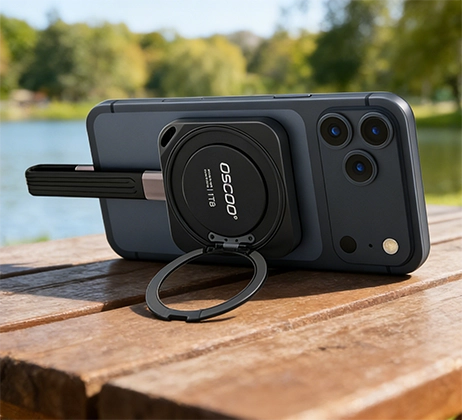
Play Cyberpunk 2077 with OSCOO MD100 portable SSD
Core Advantages of External SSDs for Gaming
External SSDs deliver tool-free, instant storage expansion with no hardware disassembly or technical setup required. For laptops, mini PCs, and handheld gaming devices such as the Steam Deck and ROG Ally, upgrading internal storage is often difficult or expensive. Modern AAA games regularly take up 70 to 150GB each, so a 512GB internal drive can fill up quickly. An external SSD with 1 to 4TB of space lets you keep your full game library installed without repeatedly uninstalling and redownloading titles.
External SSDs enable a fully portable game library that works seamlessly across multiple computers. You can install your game launcher and entire game library directly on the external SSD, then plug it into any compatible computer to launch games right away with your saved progress and settings intact. This is especially useful for students, users with multiple PCs, or anyone who wants to bring their game library on the go.
External SSDs deliver a transformative upgrade in gaming smoothness and speed over external mechanical hard drives. External HDDs typically reach only 100–160MB/s sequential read speeds and suffer from high random access latency, which causes texture pop-in and long load times in open-world games. External SSDs offer dozens of times faster random read performance, cutting load times by over 60% and eliminating stuttering and texture streaming issues.
Gaming Performance Across Different Interfaces
The real-world gaming performance of an external SSD is determined primarily by its connection interface, rather than the maximum speed of the SSD itself. Below is a breakdown of common interface specifications and their corresponding gaming performance.
| Interface Specification | Theoretical Bandwidth | Real-World Sequential Read | Gaming Experience |
|---|---|---|---|
| Thunderbolt 4 / USB4 (40Gbps) | 40Gbps | 2800–3500 MB/s | Closest to internal SSD performance. Load time differences are under 2 seconds for most AAA games, with no stuttering or frame drops. The best available option. |
| USB 3.2 Gen 2×2 (20Gbps) | 20Gbps | 1800–2000MB/s | Smooth performance for large AAA games. Slightly slower load times than internal NVMe drives, with almost no perceivable difference during regular gameplay. |
| USB 3.2 Gen 2 (10Gbps) | 10Gbps | 900–1050MB/s | The best value option. Runs most single-player games smoothly, with noticeable but mild load delays during open-world scene transitions. |
| USB 3.2 Gen 1 (5Gbps, formerly USB 3.0) | 5Gbps | 400–500MB/s | Only suitable for small indie and casual games. Significantly longer load times for large AAA titles, not recommended as a primary gaming drive. |
In terms of real-world gaming differences versus internal SSDs, frame rates are nearly identical across all interface speeds. The measurable gap is almost entirely in load times. For example, in Cyberpunk 2077, a 20Gbps external SSD loads the game only 1–2 seconds slower than an internal NVMe drive, with identical frame rates, ray tracing performance, and no in-game stuttering.
Platform Compatibility
PC Platform
For Windows and macOS PCs, external SSDs have full compatibility with no functional restrictions. All games can be installed, launched, and played directly from an external SSD. On Windows, you can add the external SSD as a game library folder in Steam, Epic Games Launcher, and other clients, and switch installation locations seamlessly.
PlayStation 5
Native PS5 games cannot be launched directly from an external USB SSD. The drive can only be used to store and archive PS5 game files. To play a native PS5 title stored on the external drive, you must first transfer it back to the console’s internal storage or the M.2 expansion slot. Backward-compatible PS4 games, however, can be installed and run directly from an external SSD, and they will load faster than when run from the PS5’s internal drive. This makes external SSDs a great way to free up internal space for native PS5 games.
Xbox Series X|S
Games optimized for Xbox Series X|S do not support direct playback from external USB SSDs. Like the PS5, the external drive serves as archival storage for next-gen titles, which must be moved back to internal storage or the official expansion card before playing. All backward-compatible games from the Xbox One, Xbox 360, and original Xbox can run directly from an external SSD with noticeably improved load times.
Handheld Gaming Devices
External SSDs are fully compatible with handheld gaming PCs such as the Steam Deck and Windows-based handhelds. Connected via USB-C, they can run large AAA games directly with minimal performance difference compared to internal storage. This is widely considered the most cost-effective way to expand storage for handheld gaming devices.
Factors That Affect Real-World Gaming Experience
Several practical factors can reduce the real-world performance of an external SSD for gaming, even if the drive and interface specifications are high.
Interface and cable matching is critical. If your host port or data cable does not support the full speed of the SSD, the connection will default to the slowest common specification. For example, pairing a Thunderbolt 4 cable with a 10Gbps USB-C port will only deliver 10Gbps performance.
Thermal performance affects sustained read stability. External SSDs generate heat during long gaming sessions with continuous asset streaming. Excessively high temperatures trigger thermal throttling, which can cause sudden in-game stutters. External SSDs with metal casings or built-in heat sinks offer better heat dissipation and more consistent performance under extended high load.
NAND flash type and cache configuration matter. Some external SSDs, particularly budget-oriented models, use QLC NAND and experience sharp write speed drops once the SLC cache is exhausted. However, because gaming is primarily a read‑intensive workload, this write slowdown mainly affects game installations and updates rather than actual gameplay. Read performance also degrades when the drive is nearly full, so keeping at least 15–20% free space is advisable.
Power delivery and connection method affect reliability. Connect the drive directly to a native port on the motherboard or rear I/O panel, and avoid unpowered USB hubs or extension cables. Insufficient power can cause drive drops, speed reductions, and in severe cases, corrupted game files. Some high-power NVMe enclosures require dual-port power to run at full speed.
Recommended and Non-ideal Use Cases
External SSDs excel in specific gaming setups, but they are not the best choice for every scenario.
Recommended Use Cases.
Gaming laptops and handhelds. External SSDs are highly recommended when internal storage upgrades are difficult, costly, or may void warranties. They offer the simplest and most hassle‑free storage expansion.
Users who switch between multiple PCs. You can install your entire game library (including saves and settings) on an external SSD and plug it into any compatible computer to play immediately, without re‑downloading or syncing files.
Console owners (PS5 / Xbox Series X|S)
Use as cold storage for less‑played native games to free up internal space.
Use as a dedicated drive for backward‑compatible titles (PS4, Xbox One/360/OG), which will see noticeably faster load times compared to the internal HDDs.
Not Recommended Use Cases
Competitive / esports gamers. External SSDs still have a tiny load‑time gap compared to top‑tier internal drives. For players who demand absolute minimum load times, even a 1–2 second difference may be undesirable.
Primary running drive for native current‑gen console games. PS5 and Xbox Series X|S do not allow native games to launch directly from external USB SSDs. They must be moved to internal storage or official expansion cards. Therefore, external drives cannot serve as the main game drive for these platforms.
Older systems with only USB 3.0 (5Gbps) or slower ports. The interface bottleneck severely limits external SSD performance. The speed advantage over a mechanical drive is minimal, so upgrading internal storage or replacing the device is more cost‑effective.
Professional competitive play where input latency is extremely sensitive. External storage does not reduce input lag and may introduce negligible extra latency due to the connection method (e.g., through hubs or cables). Professional players should avoid relying on it for tournament‑level gaming.
Buying Tips of External SSDs for Gaming
- Start with at least a 1TB model. With individual AAA games routinely exceeding 70GB, a 500GB drive will fill up quickly, and 1–2TB offers the best balance of price and capacity.
- Prioritize drives with USB 3.2 Gen 2 or faster interface speeds. Choose 10Gbps models for budget builds, and step up to 20Gbps or Thunderbolt 4 if you want the closest experience to internal storage.
- Pre-built external SSDs from established brands are generally preferable to DIY SSD plus enclosure combinations for gaming use. Pre-built units offer better validated compatibility, thermal design, and warranty coverage for more reliable long-term gaming performance.