No, a DDR5 memory stick will not physically fit into a DDR4 slot because the notch on its connector is in a different position. Even if you somehow forced it in, the electrical voltage and signal wiring are completely different, so the memory would not work and could damage your motherboard or RAM.
Why They Don't Fit Together
The Physical Notch Is in a Different Spot
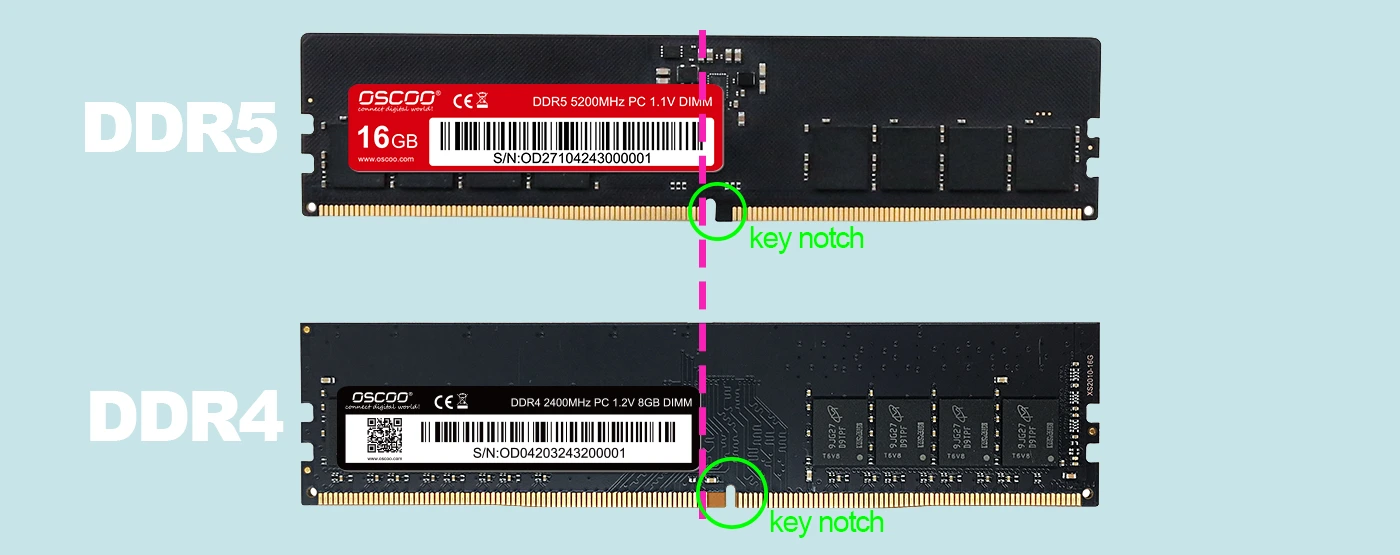
Every stick of RAM has a small gap along the gold pins called a “key notch”. Its only job is to stop you from inserting the wrong type of memory. Hold the RAM stick with the label or chips facing you. On a DDR4 stick, the notch is slightly to the right of the centre. On a DDR5 stick, the notch is closer to the centre. If you try to push a DDR5 stick into a DDR4 slot, the notch will hit a raised divider inside the slot. Forcing it will bend the pins on the RAM or crack the plastic in the slot.
Voltage and Power Management Are Not Compatible
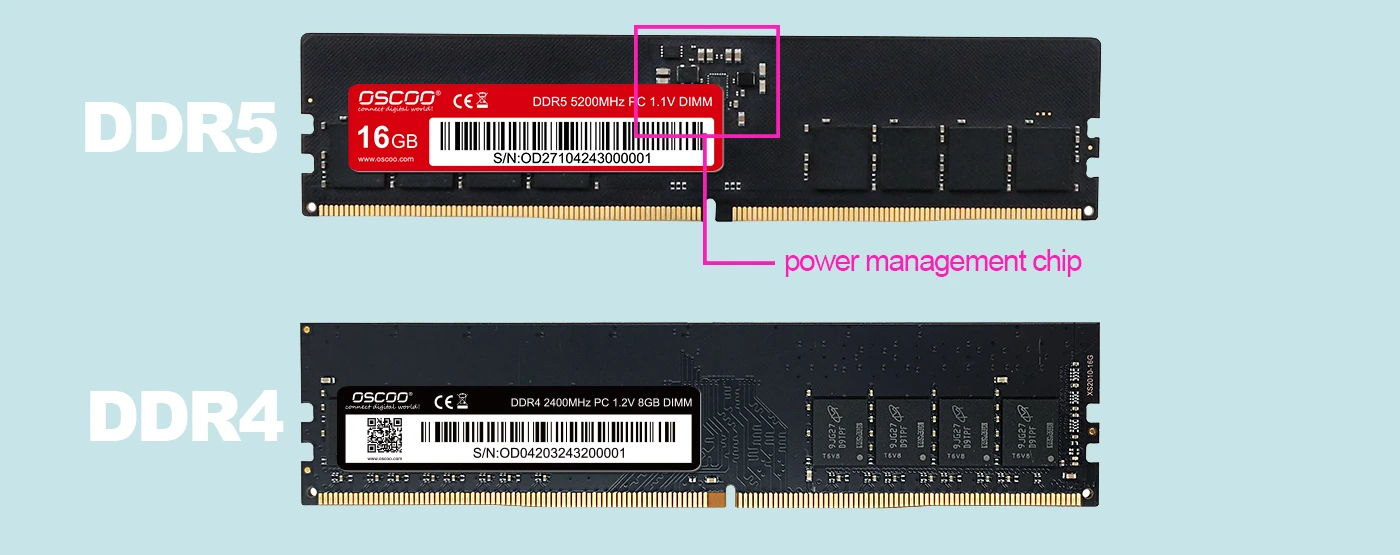
DDR4 runs at 1.2 volts, while DDR5 runs at 1.1 volts. More importantly, a DDR5 stick has its own tiny power management chip (PMIC) soldered onto the memory itself. The PMIC takes power from the motherboard and converts it to the various voltages that DDR5 chips need. A DDR4 slot does not have the wiring to send power to that PMIC, so the DDR5 RAM will receive no power at all. On the other hand, if you somehow plugged a DDR4 stick into a DDR5 slot, the motherboard would supply only 1.1 volts – too low for DDR4 to work reliably.
The Internal Lane Design Changed
DDR5 uses a new “dual‑subchannel” design: one stick of DDR5 actually works as two independent 32‑bit lanes. DDR4 uses a single 64‑bit lane. Motherboards are wired differently for these two designs. Even if the physical notch were the same (which it is not), the CPU and memory controller would not know how to talk to a DDR5 stick plugged into a DDR4‑wired slot.
Quick Comparison Between DDR4 and DDR5
| Feature | DDR4 | DDR5 |
|---|---|---|
| Notch position | Slightly to the right of centre | Closer to the centre |
| Standard voltage | 1.2 V | 1.1 V |
| Power management chip on RAM | No | Yes |
| Typical starting speed | 2133 – 3600 MHz | 4800 – 8400 MHz |
| Max per stick | 32 GB | 128 GB |
| Internal lane width | One 64‑bit channel | Two 32‑bit subchannels |
| On‑die ECC | No | Yes |

How to Tell If Your RAM Is DDR4 or DDR5
Look at the notch. Hold the stick with the gold pins facing up and the label facing you. If the notch is slightly to the right of the centre, it is DDR4. If the notch is closer to the centre, it is DDR5. This method is reliable as long as you keep the label toward you.
Read the speed label. DDR4 sticks are often labelled “DDR4‑2666”, “DDR4‑3200” – numbers between 2400 and 3600. DDR5 starts at “DDR5‑4800”, with common speeds like 5600, 6000, 7200. If you see 4800 or higher, it is almost certainly DDR5.
Look for a small extra chip. A DDR5 stick has a visible rectangular chip near the notch. That is the PMIC (power management chip) while a DDR4 stick has no such chip. You only see the memory chips and a few tiny capacitors.
Are There Motherboards with Both Slots?
Yes, some motherboard makers (like ASRock with their “Combo” series) produce boards that come with two DDR4 slots and two DDR5 slots. However, this does not mean you can put a DDR5 stick into a DDR4 slot. The two types of slots are physically separate and have different notch positions. You can only use one type of RAM at a time – either you install DDR4 sticks into the DDR4 slots, or you install DDR5 sticks into the DDR5 slots. You cannot mix them, and you definitely cannot put a DDR5 stick into the DDR4 slot. These combo boards are designed to give you a choice during purchase, not to make cross‑generation mixing possible.
What Do You Need to Upgrade to DDR5?
If you want to use DDR5 memory, you must replace three things at the same time:
Motherboard – Get one that explicitly supports DDR5.
CPU – For Intel, you need 12th‑gen Core or newer. For AMD, you need Ryzen 7000 series or newer.
RAM – Buy actual DDR5 sticks.
There is no adapter or converter that can make DDR5 work on a DDR4 motherboard. The electrical and timing differences are too deep to solve with a simple physical adapter.
If you are not sure what your current motherboard supports, do this:
Download CPU‑Z and open the “Memory” tab. It will clearly show “DDR4” or “DDR5” under “Type”.
Or look up your motherboard model online – search for its official specification page.
Before buying new RAM, use the compatibility checker on memory brand websites. Enter your computer or motherboard model, and they will show you exactly which RAM sticks are guaranteed to work.
DDR4 and DDR5 are two completely different generations. They do not fit, do not work electrically, and cannot be mixed. Upgrading to DDR5 means a new motherboard and a new CPU – there is no shortcut.