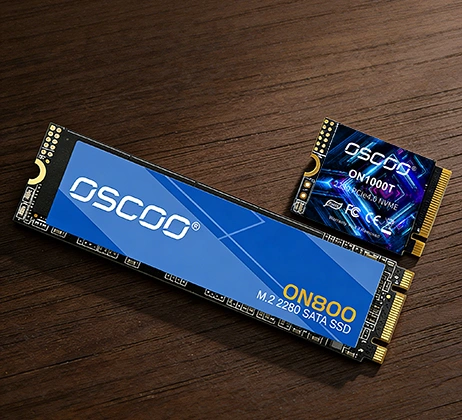
PCIe 4.0デバイスをPCIe 3.0スロットに安全に装着することができます。ハードウェアを損傷することなく正常に動作しますが、PCIe 4.0のフル機能ではなくPCIe 3.0の速度で動作します。これはPCIeに内蔵された後方互換性によるもので、新しいデバイスは最低共通規格にネゴシエートすることで、古いスロットでも動作するようになります。
なぜうまくいくのか:
PCIe 4.0デバイスがPCIe 3.0スロットで動作する理由は、PCIe規格の設計にあります。上位互換性 が中核機能です。まず、PCIe 4.0と3.0の物理コネクタは同一であるため、デバイスは力を加えることなくスロットに完全にフィットします。システムの電源を入れると、マザーボードとPCIeデバイスは自動的に通信を行い、互いの能力を検出します。そして、両者がサポートできる最も高い規格(この場合はPCIe 3.0)に決定します。重要なことは、このプロセスは完全に安全であるということです。古いスロットで新しいPCIeデバイスを使用しても、マザーボード、GPU、SSD、その他のコンポーネントが壊れる心配はありません。
PCIe 4.0と3.0の帯域幅の違い
PCIe 4.0と3.0の主な違いは帯域幅(1秒間にデバイスとマザーボード間で転送できるデータ量)です。PCIe 4.0はPCIe 3.0の帯域幅を実質的に2倍にするもので、デバイスのタイプによって性能に影響を与えます。以下は、主な仕様の明確な内訳です:
| 仕様 | PCIe 3.0 | PCIe 4.0 |
|---|---|---|
| レーンあたりの転送速度 | 8GT/秒 | 16GT/秒 |
| 有効帯域幅(x1レーン) | ~985 MB/s | ~1.969GB/秒 |
| x4構成(SSD共通) | ~3.94GB/秒 | ~7.877GB/秒 |
| x16構成(GPU共通) | ~15.75GB/秒 | ~31.51GB/秒 |
この帯域幅の倍増が、PCIe 4.0デバイスがより優れたパフォーマンスを提供する主な理由ですが、PCIe 3.0の速度に制限されている場合、その余剰容量は使用されません。

デバイス・タイプによるパフォーマンスへの影響
PCIe 4.0デバイスをPCIe 3.0スロットで使用した場合、すべてのPCIe 4.0デバイスが同じ影響を受けるわけではありません。その影響は、デバイスが日常動作に実際に必要とする帯域幅によって異なります。
- グラフィックカード(GPU):ほとんどのユーザーにとって、パフォーマンスの低下は最小限でしょう。ミッドレンジのGPUでは、PCIe 3.0 x16でも十分な帯域幅が確保されているため、ゲームや日常的なタスクではほとんど差がありません。ハイエンドGPUでも、4Kゲーム、ビデオレンダリング、AIワークロードなど、帯域幅を多用するシナリオで5~15%の性能低下が見られる程度です。カジュアルゲーマーや1080p/1440pモニターを使用している人は、おそらくその違いに気づくことはないでしょう。
- NVMe SSD:性能差が最も顕著に現れるのはここです。PCIe 4.0 NVMe SSDは、シーケンシャルリード/ライト速度が7,000 MB/s以上に達しますが、PCIe 3.0スロットに装着した場合、最大速度の約半分の3,500~3,900 MB/sに制限されます。これでもSATA SSDよりはるかに高速ですが、ビデオ編集、3Dモデリング、大容量ファイル転送などのタスクで超高速ストレージに依存しているユーザーは、速度低下を感じるでしょう。アプリを開くなどの日常的なタスクに影響するランダム読取り/書込み速度の低下はより小さいでしょう。
- その他の周辺機器:ネットワークカード、サウンドカード、キャプチャーカード、RAID コントローラなど、他のほとんどの PCIe 4.0 デバイスは、パフォーマンスに影響を与えることなく通常通り動作します。これらのデバイスがPCIe 4.0の全帯域幅を必要とすることは稀であるため、PCIe 3.0の速度で動作してもその機能に影響はありません。
プラグインする前に考慮すべきこと
ほとんどの場合、互換性はシームレスだが、すべてがスムーズに機能するようにするためには、いくつかの細かい点に注意する必要がある。
- BIOS/ファームウェアのアップデート は、非常に古いマザーボードには必要かもしれません。古いPCIe 3.0マザーボードの中には、新しいPCIe 4.0デバイスを認識しないものもありますが、メーカーのウェブサイトからBIOSをアップデートすれば解決します。
- P宅配便 は、トップクラスの GPU のような高性能デバイスにとって重要です。PCIe 4.0 GPUは多くの場合、より多くの電力を必要としますが、電源ユニット(PSU)がデバイスの電力要件を満たしている限り、これは問題になりません。
- B分岐サポート は、高度なストレージコントローラなど、一部のハイエンドデバイスにとっては重要かもしれません。Bifurcation は単一の PCIe スロットを複数のレーンに分割します(例:x16 を 2 つの x8 レーンに分割)。このようなデバイスを使用している場合は、マザーボードのマニュアルを確認してください。
- M.2スロットの帯域幅共有 は注目に値します。マザーボードによっては、M.2スロットが他のスロットとPCIeレーンを共有しているものがあります(例:PCIe 3.0 x16スロットとM.2スロット)。PCIe 4.0 M.2 SSDをPCIe 3.0 M.2スロットで使用する場合、レーンを共有することでパフォーマンスがさらに制限される可能性がありますが、ほとんどのコンシューマーセットアップではこのようなことは稀です。
PCIe 4.0はいつ重要になるのか?
PCIe 3.0マザーボードを使用している場合、PCIe 4.0デバイスに投資する価値があるのか疑問に思うかもしれません。答えはユースケースによります。 PCIe 4.0が必要なのは、高性能PCIe 4.0 NVMe SSDを使用し、最大ストレージ速度が必要な場合、フラッグシップGPUを所有し、4K/8Kゲームやプロフェッショナルなワークロードを定期的に実行する場合、複数の高帯域幅デバイスを同時に使用する場合のみです。 (例えば、マイニングやレンダリング用の複数の GPU、または高速 SSD の RAID アレイ)。カジュアルなゲーマー、オフィスワーカー、ストリーミングやウェブブラウジングにコンピュータを使用するユーザなど、ほとんどのユーザにとって、PCIe 4.0と3.0の違いは目立ちません。PCIe 3.0マザーボードでPCIe 4.0デバイスを安全に使用し、PCIe 4.0のポテンシャルを最大限に引き出す準備ができたら、後でPCIe 4.0マザーボードにアップグレードすることができます。