في عالمنا الرقمي اليوم، تلعب البيانات دوراً رئيسياً في عملنا وحياتنا اليومية. سواءً كانت مستندات مكتبية أو صورًا عائلية أو أفلامًا أو ملفات تثبيت نظام التشغيل، نحتاج جميعًا إلى أداة تخزين موثوقة ومحمولة وسهلة الاستخدام. إن ذاكرة USB, ، والمعروف أيضًا على نطاق واسع باسم محرك أقراص فلاش USB, جهاز صغير يستخدمه الجميع تقريبًا، تم إنشاؤه خصيصًا لتلبية هذه الاحتياجات.
ما هي ذاكرة USB
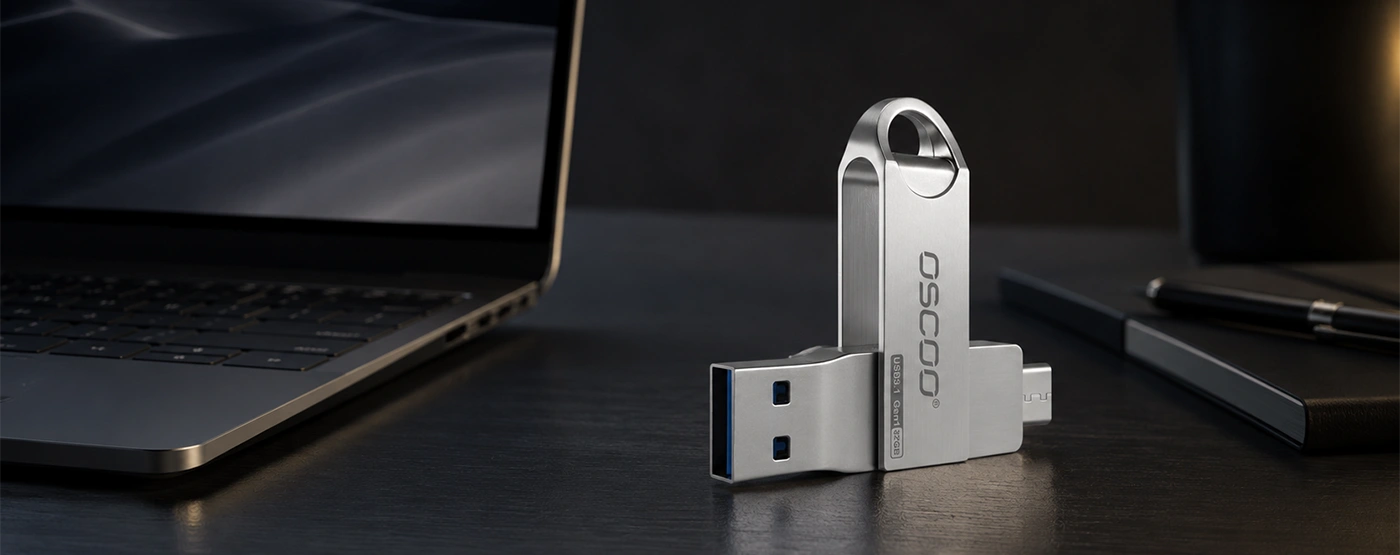
ذاكرة USB، كما يُطلق عليها اسم محرك أقراص فلاش USB، هي جهاز تخزين صغير محمول يتصل بجهاز كمبيوتر أو أجهزة أخرى من خلال منفذ USB. وهي تستخدم تقنية ذاكرة فلاش لتخزين البيانات، لذا فهي لا تحتاج إلى كابلات طاقة إضافية أو علبة ضخمة. جميع أجزائه الإلكترونية معبأة داخل غلاف صغير جداً. ولأنه بحجم الإصبع تقريبًا، يطلق عليه الناس أيضًا محرك أقراص الإبهام أو محرك الأقراص القلم. على عكس محركات الأقراص الصلبة القديمة، لا يحتوي محرك أقراص USB المحمول على أجزاء متحركة، مما يجعله هادئًا ومقاومًا للصدمات ويسهل حمله في جيبك أو على سلسلة مفاتيح.
نبذة تاريخية قصيرة
التقنية الأساسية داخل محرك أقراص فلاش USB تسمى ذاكرة فلاش. وقد اخترعها مهندس ياباني يدعى فوجيو ماسوكا في شركة توشيبا في عام 1984. ذاكرة الفلاش غير متطايرة، مما يعني أنها تحتفظ بالبيانات حتى عند انقطاع التيار الكهربائي. وهذا ما جعل جميع أنواع التخزين المحمولة ممكنة.
كان دوف موران وشركته M-Systems في إسرائيل أول من قام بدمج ذاكرة فلاش مع موصل USB وبيعها كمنتج. في عام 1998 قاموا ببناء أول تصميم عملي. وبحلول عام 2000، أطلقت شركة IBM وشركة M-Systems منتجًا يسمى DiskOnKey، وفي نفس الوقت أصدرت شركة في سنغافورة تدعى Trek Technology محرك الأقراص المحمول ThumbDrive. وتعتبر هذه أول محركات أقراص فلاش USB.
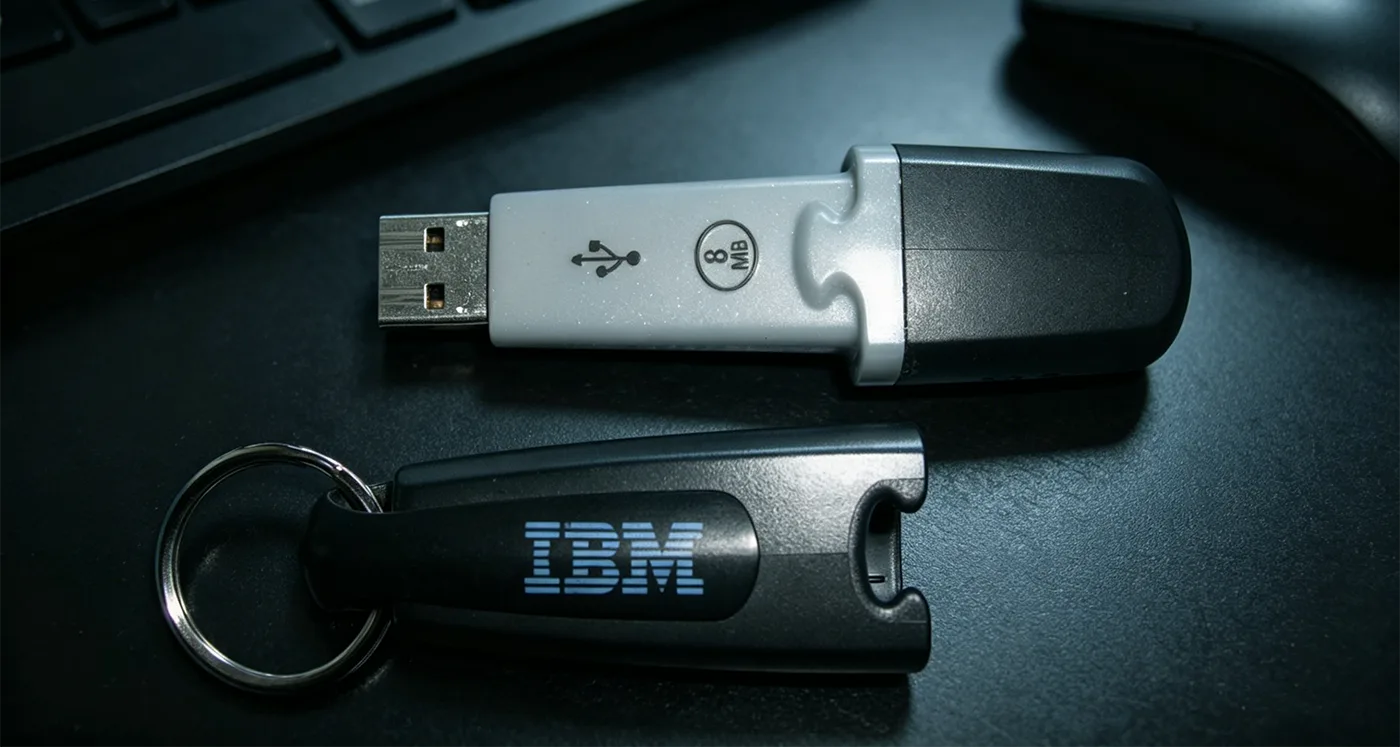
كانت الموديلات الأولى تستطيع تخزين 8 تيرابايت أو 32 تيرابايت أو 1 تيرابايت فقط من البيانات. أما اليوم فيمكنك بسهولة شراء محركات أقراص بسعة 1 تيرابايت (ألف غيغابايت) أو أكثر. على مدار العشرين عامًا الماضية، غيّر هذا الجهاز الصغير تمامًا كيفية نقل البيانات ومشاركتها.
داخل محرك أقراص فلاش USB
إذا قمت بفتح العلبة البلاستيكية أو المعدنية لمحرك أقراص فلاش USB، سترى لوحة دوائر كهربائية صغيرة تحتوي على عدة أجزاء إلكترونية. فيما يلي المكونات الرئيسية.
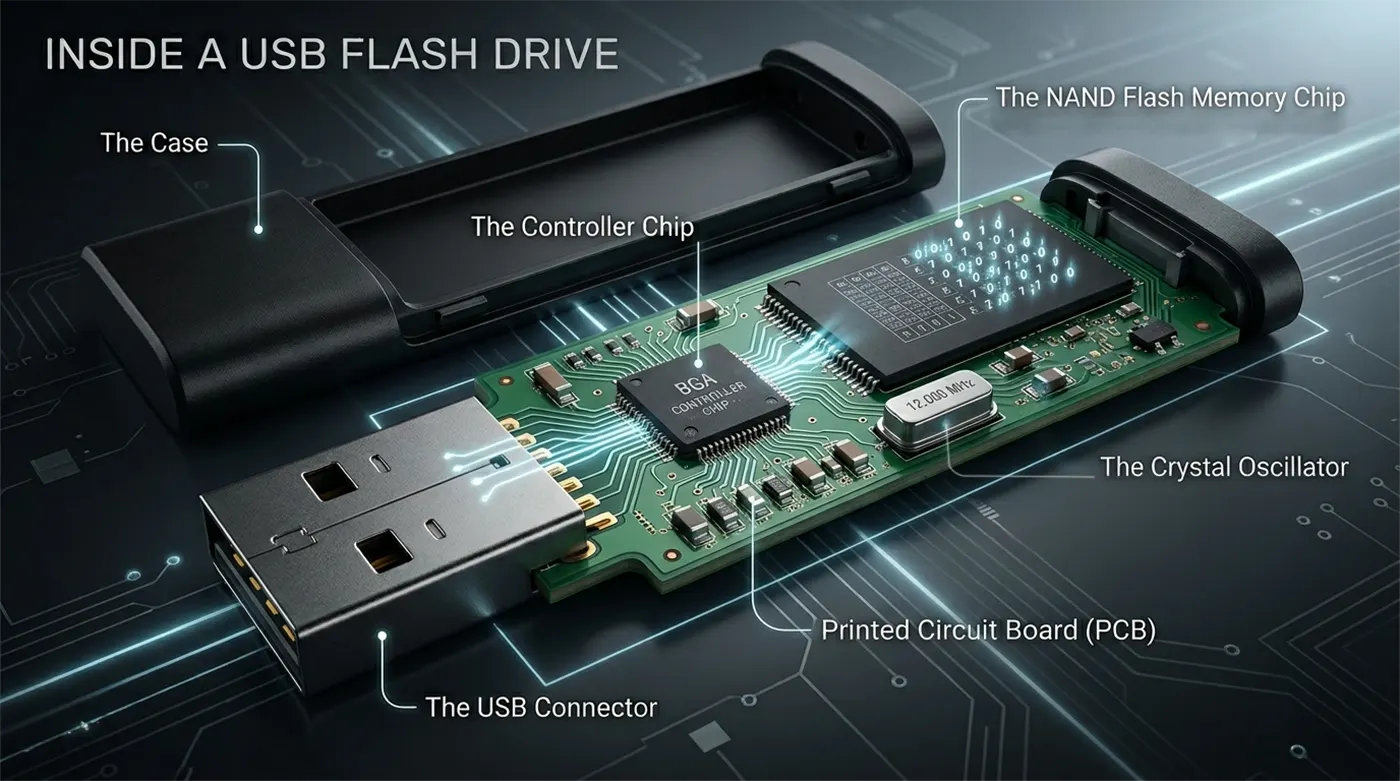
موصل USB هو الطرف المعدني الذي يتم توصيله بالكمبيوتر. وهو يحمل البيانات ويجلب الطاقة من الكمبيوتر إلى محرك الأقراص.
شريحة التحكم هو عقل محرك الأقراص. وهو عبارة عن متحكم دقيق صغير يدير كل شيء: قراءة البيانات وكتابتها، وتصحيح الأخطاء، والتأكد من أن ذاكرة الفلاش تتآكل بشكل متساوٍ حتى تدوم لفترة أطول. يمكن أن تؤثر العلامات التجارية المختلفة لوحدات التحكم على السرعة والموثوقية.
إن ذاكرة فلاش NAND الرقاقة هو المكان الذي يتم فيه تخزين بياناتك بالفعل. فهو يحتوي على مليارات الخلايا الصغيرة. تحمل كل خلية كمية معينة من الشحنة الكهربائية، ويمثل مستوى الشحنة 0 أو 1. وحتى عند إزالة الطاقة، تبقى الشحنة لسنوات عديدة.
المذبذب البلوري عبارة عن جزء معدني أو خزفي صغير، وعادةً ما يكون عليه رقم مثل 12.000. يوفر إشارة ساعة ثابتة على مدار الساعة بحيث يمكن لوحدة التحكم العمل بالسرعة المناسبة.
لوحة الدوائر المطبوعة (PCB) يربط جميع الأجزاء معًا. يحتوي على خطوط نحاسية رفيعة تحمل الإشارات والطاقة من الموصل إلى الرقائق.
القضية يحمي كل شيء بالداخل. يمكن أن يكون مصنوعًا من البلاستيك أو المطاط أو المعدن، ويمنع الغبار والكهرباء الساكنة والصدمات المادية.
كيف تعمل
عند توصيل محرك أقراص USB محمول بالكمبيوتر، يرسل الكمبيوتر 5 فولت من الطاقة عبر منفذ USB. تبدأ الدوائر الداخلية لمحرك الأقراص بالعمل، وتبدأ شريحة التحكم بانتظار الأوامر. يكتشف الكمبيوتر وجود جهاز جديد ويطلب من محرك الأقراص وصف نفسه. يجيب محرك الأقراص بمعلومات مثل سعته والسرعات التي يدعمها. بعد لحظات قليلة، يظهر محرك الأقراص في مدير الملفات.
عندما تقوم بنسخ ملف إلى محرك الأقراص، يقوم الكمبيوتر بتقسيم الملف إلى أجزاء صغيرة من البيانات وإرسالها إلى شريحة وحدة التحكم. تحتفظ وحدة التحكم بالبيانات في مخزن مؤقت، ثم تقرر مكان كتابتها على شريحة فلاش NAND. كما تضيف أيضًا رموز تصحيح أخطاء إضافية بحيث يمكن إصلاح أي أخطاء صغيرة تلقائيًا عند قراءة الملف لاحقًا. بعد الانتهاء من الكتابة، يقول محرك الأقراص للكمبيوتر “تم”.”
عند قراءة ملف، يحدث العكس. تقوم وحدة التحكم بالبحث عن مكان تخزين البيانات على شريحة الفلاش وقراءتها وتصحيح أي أخطاء وإرسالها مرة أخرى إلى الكمبيوتر من خلال كابل USB.
أحد الأشياء المهمة التي يجب معرفتها هو أن ذاكرة الفلاش لا يمكن كتابتها أو مسحها إلا في كتل كبيرة، وليس بايت بايت. لذلك حتى لو قمت بتغيير حرف واحد فقط في مستند، قد يضطر محرك الأقراص إلى قراءة كتلة كاملة وتغييرها وكتابة الكتلة بأكملها مرة أخرى. هذا هو السبب في أن محركات أقراص USB تكون أبطأ عند نسخ آلاف الملفات الصغيرة مقارنةً بعدد قليل من الملفات الكبيرة.
الميزات الرئيسية
تتميز محركات أقراص USB المحمولة بالعديد من الميزات التي تجعلها مختلفة عن غيرها من أجهزة التخزين الأخرى، وهذه الميزات تفسر سبب بقائها شائعة لفترة طويلة.
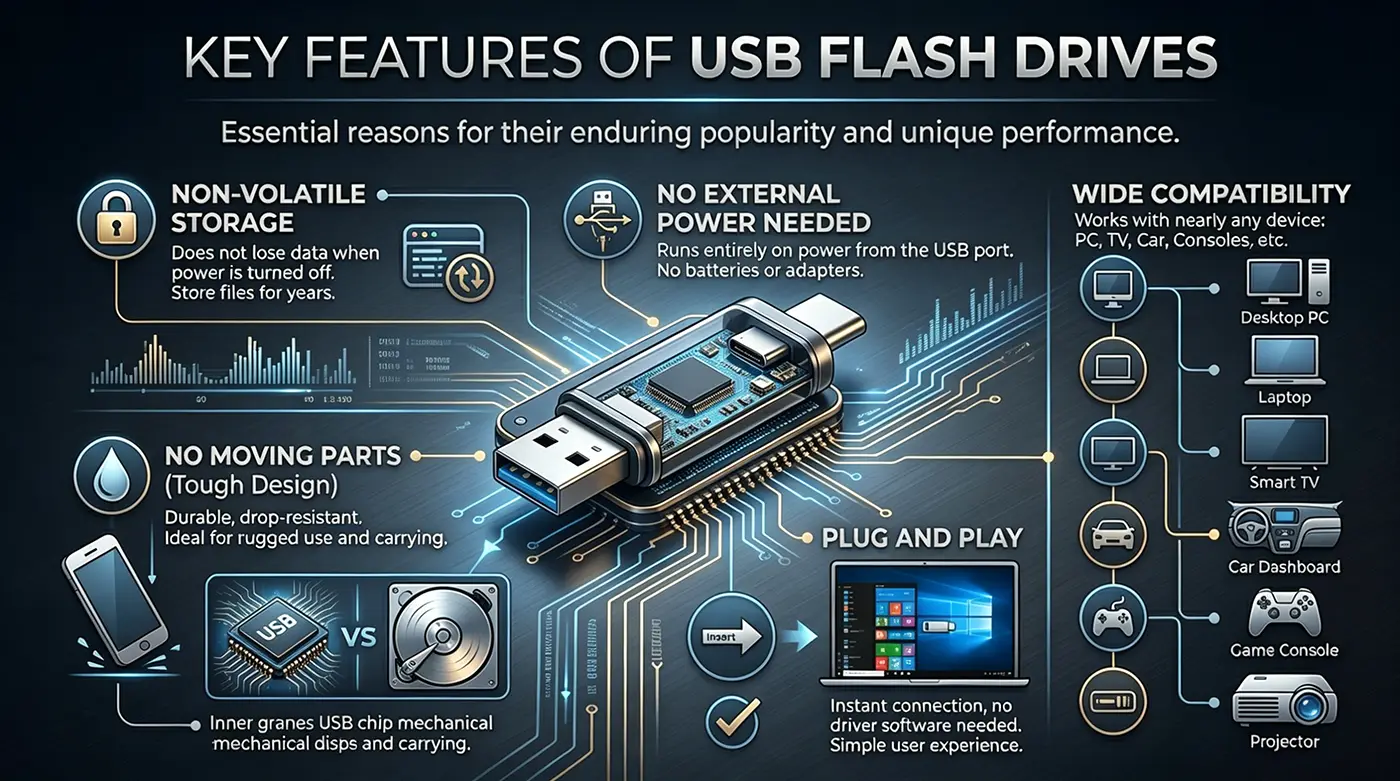
تخزين غير متطاير هي الميزة الأكثر أهمية. على عكس ذاكرة الكمبيوتر (ذاكرة الوصول العشوائي)، لا يفقد محرك أقراص USB البيانات عند إيقاف تشغيل الطاقة. ولهذا السبب يمكنك تخزين الملفات عليه لسنوات.
لا حاجة إلى طاقة خارجية ميزة كبيرة أخرى. يعمل محرك الأقراص بالكامل بالطاقة من منفذ USB، لذا لا توجد بطاريات لشحنها أو محولات لحملها.
لا توجد أجزاء متحركة يجعل محرك الأقراص قويًا للغاية. إذا أسقطت محرك أقراص صلبة تقليدي أثناء عمله، فقد يتلف القرص الدوار ورأس القراءة بسهولة. أما إذا أسقطت محرك أقراص فلاش USB فمن شبه المؤكد أنه سيكون بخير. وهذا يجعله مثاليًا لحمله في حقيبة أو جيب.
التوصيل والتشغيل هو أكثر ما يحبه المستخدمون. على جميع أجهزة الكمبيوتر الحديثة تقريبًا، ما عليك سوى إدخال محرك الأقراص والانتظار بضع ثوانٍ وسيظهر. لا تحتاج إلى تثبيت أي برنامج تشغيل. عند الانتهاء، يمكنك سحبه بعد إخراجه بأمان.
توافق واسع النطاق يعني أن محرك أقراص USB المحمول يعمل مع أي جهاز يحتوي على منفذ USB تقريباً. ويشمل ذلك أجهزة الكمبيوتر المكتبية وأجهزة الكمبيوتر المحمولة وأجهزة التلفاز الذكية وأنظمة الصوت في السيارة وأجهزة الألعاب وأجهزة العرض وحتى العديد من الطابعات وأجهزة التوجيه.
سرعات النقل ومعايير USB
إن معيار USB الذي يستخدمه محرك الأقراص الخاص بك له تأثير كبير على مدى سرعة قراءة البيانات وكتابتها. لقد غيرت مجموعة USB-IF قواعد التسمية عدة مرات، لكن الجدول أدناه يوضح الأسماء الأكثر شيوعًا وما تعنيه في الحياة الواقعية.
| الاسم الشائع | السرعة النظرية القصوى | السرعة المعتادة في العالم الحقيقي | الأفضل لـ |
|---|---|---|---|
| USB 2.0 | 480 ميغابت في الثانية (حوالي 60 MB/s) | 10-30 MB/ثانية | المستندات الصغيرة والصور والموسيقى |
| USB 3.2 الجيل 1 من USB 3.2 (USB 3.0 سابقاً) | 5 جيجابت في الثانية (حوالي 640 MB/s) | 80-150 MB/ثانية | مقاطع فيديو عالية الدقة، وتثبيت النظام، والنسخ الاحتياطية الكبيرة |
| USB 3.2 الجيل 2 (USB 3.1 سابقاً) | 10 جيجابت في الثانية | 200-400 MB / ثانية | ملفات المشاريع الكبيرة، تخزين خارجي سريع، تخزين خارجي سريع |
| USB 3.2 Gen 3.2 2×2 | 20 جيجابت في الثانية | 400+ MB/ثانية | تحرير فيديو احترافي، محركات أقراص NVMe |
| USB 4 | 40 جيجابت في الثانية | عالية جداً | أداء عالي المستوى |
ملاحظة مهمة للغاية: عادةً ما تشير السرعة المطبوعة على عبوة محرك أقراص USB (على سبيل المثال، “150 MB/s”) إلى اقرأ السرعة. غالباً ما تكون سرعة الكتابة أقل بكثير. إذا كنت غالبًا ما تنسخ كميات كبيرة من البيانات على محرك الأقراص، فابحث عن المراجعات أو تفاصيل المنتج التي تسرد أيضًا سرعة الكتابة. أيضاً، تعتمد السرعة الحقيقية على حجم الملفات. فنسخ ملف فيلم واحد كبير أسرع بكثير من نسخ عشرة آلاف ملف مستند صغير، لأن محرك الأقراص يقضي وقتاً إضافياً في العثور على موقع كل ملف صغير.
أنواع الموصلات
يحدد شكل موصل USB الأجهزة التي يمكن توصيل محرك الأقراص بها. فيما يلي الأنواع الثلاثة الأكثر شيوعاً.
USB من النوع A هو الموصل المستطيل التقليدي. هذا ما يفكر فيه معظم الناس عندما يتخيلون محرك أقراص USB. فهو يدخل في اتجاه واحد فقط، ولكنه يعمل مع كل أجهزة الكمبيوتر والكمبيوتر المحمول التي صُنعت في العشرين سنة الماضية تقريبًا. يتميز النوع A بالتوافق الأوسع نطاقاً.
USB من النوع C هو موصل أحدث بيضاوي الشكل يمكنك توصيله في أي من الاتجاهين - لا يوجد جانب خاطئ. يدعم النوع C سرعات أعلى بكثير (حتى USB 4) ويمكنه أيضًا حمل المزيد من الطاقة. العديد من أجهزة الكمبيوتر المحمولة والأجهزة اللوحية وحتى الهواتف الذكية الجديدة تستخدم الآن النوع C. تأتي بعض محركات الأقراص الحديثة مزودة بموصلات من النوع A والنوع C على نفس الجهاز، أو تحتوي على قابس من النوع C فقط.
مايكرو-يو إس بي هو موصل أصغر وأقدم كان شائعًا في الهواتف والأجهزة اللوحية التي تعمل بنظام Android منذ عدة سنوات. ونادراً ما تستخدمه الأجهزة الجديدة اليوم، ولكن لا يزال بإمكانك العثور على محركات أقراص Micro-USB مصممة للهواتف القديمة التي تدعم وضع OTG (أثناء التنقل). تقتصر معظم هذه الأقراص على سرعات USB 2.0.
تحتوي بعض محركات الأقراص على غطاء منزلق أو دوار لحماية الموصل عند عدم استخدامه. هناك أيضًا محركات أقراص مزودة بموصل Lightning لأجهزة Apple iPhone وiPad الأقدم، ولكنها أقل شيوعًا.
سعة التخزين
تتوافر محركات أقراص USB المحمولة بأحجام مختلفة، بدءاً من الطرازات القديمة التي لا تتجاوز بضعة ميغابايت (MB) إلى محركات الأقراص الحالية التي تستوعب تيرابايت أو تيرابايتين (تيرابايت). يعتمد اختيار الحجم المناسب على ما تريد تخزينه.
8 جيجابايت إلى 32 جيجابايت محركات الأقراص مثالية للمستندات اليومية وملفات العمل والصور والقليل من الموسيقى. إذا كنت تحمل ملفات Word وملفات PDF وعروض PowerPoint التقديمية بشكل أساسي، فإن هذه المجموعة تقدم أفضل قيمة.
64 جيجابايت إلى 128 جيجابايت محركات الأقراص مخصصة للأشخاص الذين يحتاجون إلى مساحة أكبر - ربما صور من عدة رحلات، أو مجموعة من مثبتات البرامج، أو نسخة احتياطية لبيانات هاتفك. وهي أيضاً ذات حجم جيد إذا كنت ترغب في إنشاء محرك أقراص قابل للتشغيل بنظام تشغيل محمول.
256 جيجابايت إلى 512 جيجابايت يمكن أن تتعامل محركات الأقراص مع مقاطع الفيديو عالية الدقة أو ملفات الألعاب أو صورة كاملة للنظام من القرص الصلب للكمبيوتر. غالباً ما يختار العاملون المبدعون ومحترفو تكنولوجيا المعلومات هذا النطاق.
1 تيرابايت وما فوق محركات الأقراص كبيرة حقاً. يمكنها تخزين عشرات من أفلام Blu-ray، أو عشرات الآلاف من الأغاني بجودة عالية بدون فقدان البيانات، أو أرشيفات كاملة لمشاريع عمل كاملة. ومع ذلك، فهي أغلى ثمناً، وقد تحتاج إلى تهيئتها على هيئة exFAT أو NTFS لتخزين ملفات أكبر من 4 جيجابايت.
لمساعدتك في تخيل الأرقام: تشغل صورة JPEG نموذجية بدقة 12 ميجابكسل حوالي 3 إلى 5 1 تيرابايت. يمكن لمحرك أقراص بسعة 128 جيجابايت تخزين ما يقرب من 25,000 إلى 42,000 صورة من هذا القبيل. تبلغ مساحة أغنية MP3 مدتها 5 دقائق حوالي 5 MB، لذا فإن محرك الأقراص سعة 128 جيجابايت يستوعب حوالي 25000 أغنية. يستغرق الفيلم الذي تبلغ مدته 90 دقيقة بدقة 1080 بكسل مضغوطة بشكل جيد حوالي 2 غيغابايت، لذا فإن محرك الأقراص نفسه يستوعب حوالي 60 فيلمًا.
الاستخدامات الشائعة
تُستخدم محركات أقراص USB المحمولة لأكثر من مجرد نسخ الملفات. فيما يلي بعض الطرق الأكثر شيوعًا التي يستخدمها الناس.
النسخ الاحتياطي للبيانات وتخزينها هو الاستخدام الأساسي. سواء كنت تحتفظ بصور العائلة كنسخة ثانية أو تحتفظ بمستندات العمل دون اتصال بالإنترنت، يمنحك محرك أقراص USB نسخة احتياطية مادية لا تعتمد على الإنترنت أو حساب سحابي. بالنسبة للأشخاص الذين لا يرغبون في تحميل معلومات حساسة عبر الإنترنت، يعد محرك الأقراص خياراً بسيطاً ومباشراً.
نقل الملفات بين أجهزة الكمبيوتر لا تزال إحدى الوظائف الرئيسية لمحرك أقراص USB. عندما يكون لديك ملف كبير جدًا، أو عندما لا يكون هناك اتصال جيد بالإنترنت، غالبًا ما يكون النسخ إلى محرك أقراص وتسليمه إلى شخص ما أسرع وأكثر موثوقية من أي نقل عبر الإنترنت. يمكنك أيضًا توصيل محرك أقراص بمنفذ USB في السيارة لتشغيل الموسيقى، أو في تلفزيون ذكي لمشاهدة فيلم.
تثبيت نظام التشغيل مهمة شائعة أخرى. يمكنك استخدام أداة مجانية لكتابة صورة تثبيت Windows أو Linux على محرك أقراص USB. ثم تقوم بتعيين جهاز الكمبيوتر الخاص بك للتمهيد من محرك الأقراص هذا، ويمكنك تثبيت نظام التشغيل أو إصلاحه. وهذا أسرع بكثير من استخدام أقراص DVD القديمة، كما أن العديد من الحواسيب الحديثة لا تحتوي على محرك أقراص على الإطلاق.
تشغيل نظام تشغيل محمول (Live USB) يأخذ هذا الأمر خطوة إلى الأمام. يمكنك تثبيت نظام Linux كامل على محرك أقراص USB ثم تشغيل أي كمبيوتر منه. يمكنك الحصول على سطح المكتب الخاص بك، والإعدادات الخاصة بك، والبرامج المثبتة الخاصة بك، دون تغيير أي شيء على القرص الصلب الداخلي للكمبيوتر. وهذا مفيد للإصلاحات الطارئة أو التصفح الخاص أو استخدام حاسوب مستعار بأمان.
استخدام التطبيقات المحمولة خدعة ذكية لمستخدمي ويندوز. فالعديد من البرامج مثل متصفحات الويب ومجموعات البرامج المكتبية ومديري كلمات المرور لها إصدارات “محمولة” تعمل مباشرةً من محرك أقراص USB دون تثبيت. يمكنك حمل أدواتك المفضلة واستخدامها على أي جهاز كمبيوتر.
إصلاح النظام وتشخيصه هي مهمة للمستخدمين التقنيين. يمكنك وضع أدوات إصلاح القرص أو ماسحات الفيروسات أو مديري الأقسام على محرك أقراص USB. إذا كان الكمبيوتر لا يعمل بشكل طبيعي، يمكنك التمهيد من محرك الأقراص ومحاولة إصلاح المشكلة.
الإيجابيات والسلبيات
لكل جهاز تخزين نقاط قوته وضعفه. ستساعدك معرفتها على استخدام محرك أقراص USB المحمول بحكمة وتجنب فقدان البيانات المهمة.
المزايا
قابلية النقل هي النقطة الأقوى. يزن محرك الأقراص النموذجي بضعة جرامات فقط وطوله يماثل طول عود العلكة. يمكنك تعليقه على سلسلة مفاتيحك دون أن تلاحظ ذلك.
لا توجد أجزاء متحركة يجعل محرك الأقراص متينًا للغاية. فنادرًا ما يتسبب إسقاطه من على مكتب أو سحقه داخل حقيبة في تلفه. هذا النوع من المتانة مستحيل بالنسبة لمحركات الأقراص الصلبة الميكانيكية.
لا توجد طاقة خارجية يعني أن محرك الأقراص يعمل في أي مكان يوجد فيه منفذ USB. لا داعي للقلق بشأن نفاد البطاريات أو العثور على منفذ طاقة.
توافق واسع النطاق يكاد يكون عالميًا. من جهاز كمبيوتر مكتبي عمره عشر سنوات إلى أحدث كمبيوتر محمول، ومن PlayStation إلى جهاز ستيريو السيارة - معظم الأجهزة التي تحتوي على منفذ USB يمكنها قراءة محرك أقراص USB.
التوصيل والتشغيل يبقي الأمور بسيطة. حتى المبتدئ يمكنه نسخ الملفات بعد ثوانٍ قليلة.
قيمة جيدة مقابل المال يجعل محركات الأقراص ميسورة التكلفة. يمكنك اليوم شراء محرك أقراص بسعة 64 جيجابايت من علامة تجارية موثوق بها مقابل بضعة دولارات فقط، وهو سعر كان يبدو غير معقول قبل عشر سنوات.
العيوب
دورات كتابة محدودة هي حقيقة من حقائق ذاكرة الفلاش. لا يمكن مسح كل خلية ذاكرة وإعادة كتابتها إلا لعدد معين من المرات. بالنسبة لذاكرة فلاش MLC، يبلغ هذا العدد حوالي 3000 إلى 10000 دورة. نادرًا ما يصل المستخدمون العاديون إلى هذا الحد، ولكن إذا كنت تستخدم محرك الأقراص كقرص عمل مؤقت لتحرير الفيديو أو لتشغيل البرامج التي تكتب ملفات صغيرة طوال الوقت، فقد يتآكل محرك الأقراص في وقت أقرب.
اختناقات السرعة شائعة، خاصة على محركات الأقراص الرخيصة. قد لا يزال محرك الأقراص الذي يحمل علامة USB 3.0 يكتب البيانات بسرعة 20-30 MB/s فقط، وهو أبطأ بكثير من محرك أقراص SSD خارجي يكتب بسرعة 400-1000 MB/s. إذا كنت تقوم بنقل ملفات كبيرة كل يوم، فقد تصبح سرعة محرك أقراص USB الأساسي محبطة.
سهولة الخسارة هو الجانب الآخر لكونها صغيرة. فليس من غير المعتاد أن تنسى محرك الأقراص في الطابعة أو غرفة الاجتماعات أو كمبيوتر المكتبة. ولأن محركات الأقراص صغيرة، يمكن أن تسقط من سلسلة المفاتيح دون أن تلاحظ ذلك. إذا لم يكن محرك الأقراص مشفرًا، يمكن لأي شخص يجده أن يقرأ ملفاتك.
لا يوجد تكرار للأجهزة يعني أنه إذا تعطلت شريحة التحكم أو شريحة الفلاش، فمن شبه المؤكد أن بياناتك ستختفي إلى الأبد. على عكس محركات الأقراص الصلبة الميكانيكية، حيث يمكن لمختبر محترف استرداد البيانات في بعض الأحيان، فإن استرداد محركات أقراص USB صعب ومكلف للغاية.
غير جيد للتخزين البارد طويل الأمد هو حد آخر. تتسرب الشحنة الكهربائية داخل ذاكرة الفلاش ببطء مع مرور الوقت. إذا قمت بملء محرك الأقراص بالبيانات ووضعته في الدرج لمدة خمس سنوات دون توصيله، فقد تصبح بعض ملفاتك غير قابلة للقراءة. لذلك، لا ينبغي أن يكون محرك أقراص USB هو نسختك الوحيدة من الأرشيفات المهمة حقًا.
الخاتمة
لقد قطع محرك أقراص فلاش USB شوطًا طويلاً من لعبة صغيرة لا تتسع سوى لعدد قليل من أغاني MP3 قبل عشرين عامًا، إلى مستودع بيانات محمول يخزن مجموعات أفلام كاملة اليوم. فالتخزين السحابي لم يقضي عليه، ولم تحل محركات الأقراص الخارجية ذات الحالة الثابتة محلها. وبدلاً من ذلك، لا يزال محرك أقراص USB رفيقًا موثوقًا به في جيوب المستخدمين العاديين والمحترفين على حد سواء، وذلك بفضل قابليته الفائقة للنقل وتوافقه المذهل ونسبة السعر إلى السعة التي تتحسن باستمرار. بالطبع، لا يوجد جهاز مثالي. تحتاج إلى فهم حدوده لاستخدامه بحكمة. أفضل طريقة هي التعامل مع محرك أقراص USB المحمول كوسيط متنقل مناسب وأداة مؤقتة، وليس كأرشيف دائم أو كنسخة احتياطية وحيدة.