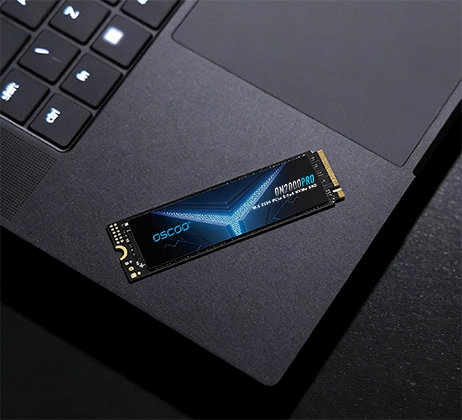
Prioriza un SSD con disipador si tienes un Unidad NVMe PCIe 4.0 o 5.0 y utiliza su PC para tareas pesadas o tiene un flujo de aire limitado. Esta pequeña inversión protege su unidad SSD de alto rendimiento de las ralentizaciones y el desgaste prematuro, lo que la convierte en una actualización rentable. Pero fo usuarios con Unidades SSD SATA, unidades PCIe 3.0 NVMeo sólo tareas informáticas cotidianas ligeras, un disipador no ofrece ventajas tangibles y es un gasto innecesario. Esta clara división se basa en los riesgos de estrangulamiento térmico, el rendimiento constante y la durabilidad a largo plazo de la unidad, no en pequeñas fluctuaciones de temperatura.
Por qué la temperatura de las SSD es importante para el rendimiento
Las modernas unidades SSD NVMe de alta velocidad generan un calor considerable durante su funcionamiento, gracias a sus veloces chips controladores y a su densa memoria flash NAND. Todas las SSD incorporan una función de seguridad denominada estrangulación térmicaque reduce automáticamente las velocidades de lectura y escritura una vez que las temperaturas internas superan los 70°C a 80°C para evitar daños permanentes en el hardware. Esta ralentización no es un problema menor; puede reducir la velocidad de transferencia sostenida entre 25% y 40% durante tareas prolongadas como transferencias de archivos de gran tamaño, edición de vídeo 4K o cargas de juego intensivas. Un disipador térmico de calidad disipa este exceso de calor de forma pasiva, manteniendo la temperatura de la unidad en el rango óptimo de 30 °C a 55 °C y eliminando por completo la ralentización inesperada.

A diferencia de las unidades SSD SATA o los modelos PCIe 3.0 más antiguos, que funcionan a velocidades más bajas y producen un calor mínimo, las unidades PCIe 4.0 y 5.0 más recientes llevan las velocidades de transferencia de datos a niveles extremos, por lo que la gestión del calor es crucial para obtener el máximo rendimiento. Incluso las ráfagas cortas de calor elevado pueden interrumpir la entrega de velocidad constante, mientras que las altas temperaturas prolongadas desgastan gradualmente las células flash NAND con el tiempo.
Cuando un disipador térmico añade un valor real y medible
Un disipador térmico se convierte en una mejora crítica en situaciones específicas y comunes que la mayoría de los entusiastas de la tecnología y los usuarios avanzados encuentran con regularidad.
- Si su PC utiliza una carcasa ITX compacta, una estructura de factor de forma pequeño o tiene un flujo de aire interno deficiente con ventiladores de carcasa limitados, el calor atrapado empujará rápidamente a una SSD NVMe al territorio de la ralentización sin un disipador térmico.
- Si utiliza habitualmente su unidad SSD para cargas de trabajo pesadas -como la reproducción de vídeo 4K/8K, la ejecución de grandes transferencias de bases de datos, la edición de archivos fotográficos sin procesar o la ejecución de juegos con un uso intensivo de gráficos durante horas-, las altas velocidades sostenidas dependen de temperaturas bajas estables.
Cuando puede prescindir por completo del disipador térmico
No todos los usuarios necesitan invertir en un disipador térmico, y hay casos claros en los que el coste adicional no aporta ningún beneficio en el mundo real.
- Si utilizas una SSD SATA o una SSD PCIe 3.0 NVMe básica, estas unidades funcionan a velocidades mucho más bajas y producen muy poco calor, incluso con un uso moderado.
- Para tareas cotidianas ocasionales -navegación web, edición de documentos, streaming y multitarea ligera- las temperaturas del SSD se mantendrán muy por debajo de los límites de ralentización sin ayuda de refrigeración.
- Los PC de torre completa o media torre con gran flujo de aire y varios ventiladores de carcasa también mantienen frías de forma natural las unidades SSD M.2, incluso en el caso de los modelos PCIe 4.0 de uso ligero.
- Los usuarios de portátiles deberían evitar por completo los disipadores de posventa, ya que las limitaciones de espacio interno y diseño hacen que la refrigeración adicional sea inviable y potencialmente dañina para los componentes internos.
Opciones de disipador térmico: Comparación de costes y rendimiento
La elección entre una unidad SSD con disipador térmico de fábrica y otra de repuesto depende de su presupuesto y de la configuración existente. La siguiente tabla desglosa las principales diferencias:
| Tipo de opción | Coste típico Prima | Principales ventajas | Lo mejor para |
|---|---|---|---|
| Disipador térmico de fábrica SSD | 5%-15% sobre modelo estándar | Ajuste optimizado, refrigeración probada en fábrica, cobertura total de la garantía, sin instalación adicional | Usuarios de PCIe 4.0/5.0, principiantes, construcciones compactas |
| Disipador térmico posventa | $8-$20 autónomo | Económico, compatible con la mayoría de unidades M.2, tamaños personalizables | Usuarios con unidades SSD existentes, constructores con presupuestos ajustados |
| Sin disipador térmico | $0 | Menor coste inicial, perfil delgado para espacios reducidos | Usuarios de SATA/PCIe 3.0, uso diario ocasional, PC con gran flujo de aire |
Consejos prácticos para la instalación y la longevidad
Si opta por un disipador térmico, la instalación adecuada es clave para maximizar la eficacia de la refrigeración.
- Controle la temperatura de su SSD con herramientas gratuitas como HWiNFO64 o CrystalDiskInfo para confirmar si necesita un disipador. Si su unidad alcanza regularmente los 65 °C o más bajo carga, un disipador térmico solucionará inmediatamente el problema de ralentización y prolongará la vida útil de la unidad.
- Utilice siempre la almohadilla térmica incluida entre el controlador SSD y el disipador térmico, ya que si omite o duplica las almohadillas térmicas arruinará la transferencia de calor.
- Comprueba dos veces los límites de altura de la ranura M.2 de tu placa base antes de comprar un disipador voluminoso del mercado de accesorios, ya que los modelos de gran tamaño pueden interferir con la instalación de la GPU o la RAM.